


Compatibility Testing: Cross-Platform & Cross-Browser Testing Explained
 15 MIN
 09 Feb 2026
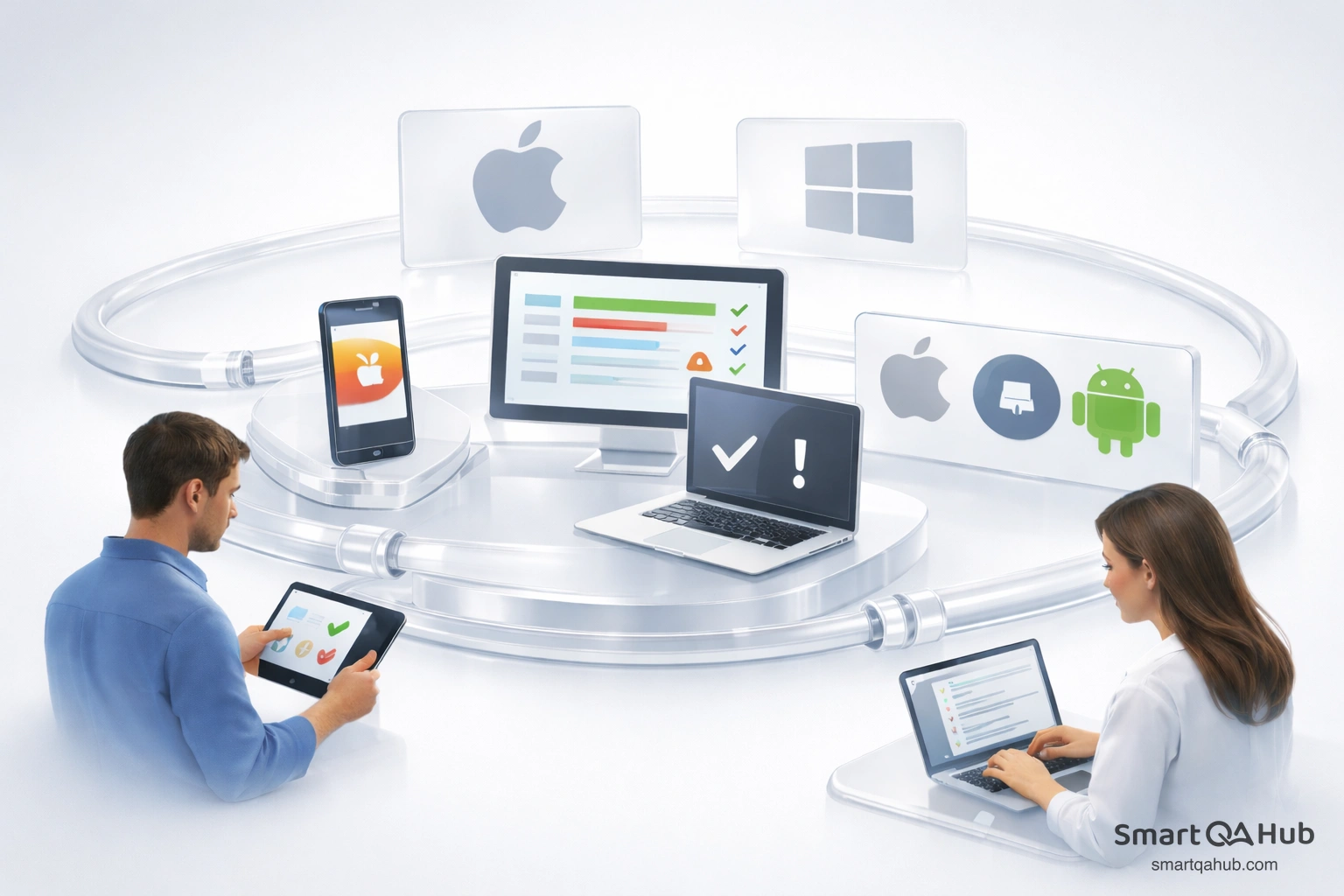
Compatibility testing is what stands between a flawless demo and real-world chaos. Everything checks out in your test environment. The build is stable, the tests are clean, and nothing looks out of place. Then a user opens the application on their device and subtle issues start surfacing. Layouts shift, interactions behave differently, and features that seemed rock-solid suddenly aren’t.
Table of content
This is where compatibility testing proves its value. It’s not about finding obvious defects; it’s about validating that an application delivers a consistent experience across various devices, platforms, and environments. In this article, we’ll look at what compatibility testing really involves and how to approach it in a practical, methodical way, without turning it into a painful exercise.
What is compatibility testing?
Let’s start with the basics. When someone asks “what is compatibility testing,” they’re really asking: how do I make sure my software works for everyone, not just the people using the same setup as me?
Compatibility testing is a type of non-functional testing that checks whether your software works correctly across different environments. Think of it as making sure your application plays nice with all the different devices, browsers, operating systems, and networks that real users actually have.
In software compatibility testing, you’re asking: will this thing work the same way on Chrome as it does on Safari? Will it run on someone’s three-year-old Android phone? What happens when a user connects through a slow network connection? The goal isn’t to find bugs in your features, that’s what functional testing is for. Instead, compatibility testing in software testing focuses on how your application behaves when the environment changes. Same software, different playground.
A quick compatibility testing example
Let me paint you a picture. Imagine you’ve built an online banking application. It works beautifully on your MacBook running the latest version of Chrome. But here’s the reality check:
- A customer in a rural area might be using Internet Explorer on a Windows 7 machine
- A young professional might access it through their iPhone during their commute
- A business owner could be checking their accounts on an Android tablet
- Someone at an office might be stuck behind a corporate firewall with restricted bandwidth
Each of these scenarios represents a different compatibility challenge. Your app needs to work for all of them. That’s what compatibility testing is all about: making sure you don’t accidentally exclude a chunk of your users because you only tested in one environment.
Why should you care about software compatibility testing?
I get it. Testing is already time-consuming, and now I’m telling you to test everything multiple times in different environments? Before you close this tab, let me explain why this actually matters.
It’s not just about looking good
Sure, a broken layout looks unprofessional. But compatibility issues go way deeper than aesthetics. We’re talking about:
- Lost revenue: If your e-commerce checkout doesn’t work on mobile Safari, you’ve just lost every iPhone user who wanted to buy something. According to industry data, mobile devices account for more than half of all web traffic. That’s a lot of potential customers walking away.
- Damaged reputation: Users don’t care why your app doesn’t work. They just know it doesn’t work for them. One bad user experience, and they’re telling their friends to avoid your product. Or worse, leaving a one-star review.
- Accessibility problems: Different devices and browsers also affect accessibility features. Someone relying on screen readers or specific browser settings might be completely unable to use your application if you haven’t tested for compatibility.
- Security vulnerabilities: Older browsers often have unpatched security holes. If your app forces users to disable security features to work properly, you’re creating risk for everyone.
The hidden costs of skipping it
Here’s something most people don’t think about: fixing compatibility issues after launch is exponentially more expensive than catching them during testing. Finding and fixing a bug during development might take an hour. Finding that same bug after thousands of users have encountered it? Now you’re dealing with angry customer support tickets, emergency patches, potential data issues, and reputation damage that takes months to repair.
A company can face a class-action lawsuit because their software update caused a five-day disruption for businesses. The issue? Compatibility problems that weren’t caught before release.
What are the main types of compatibility testing?
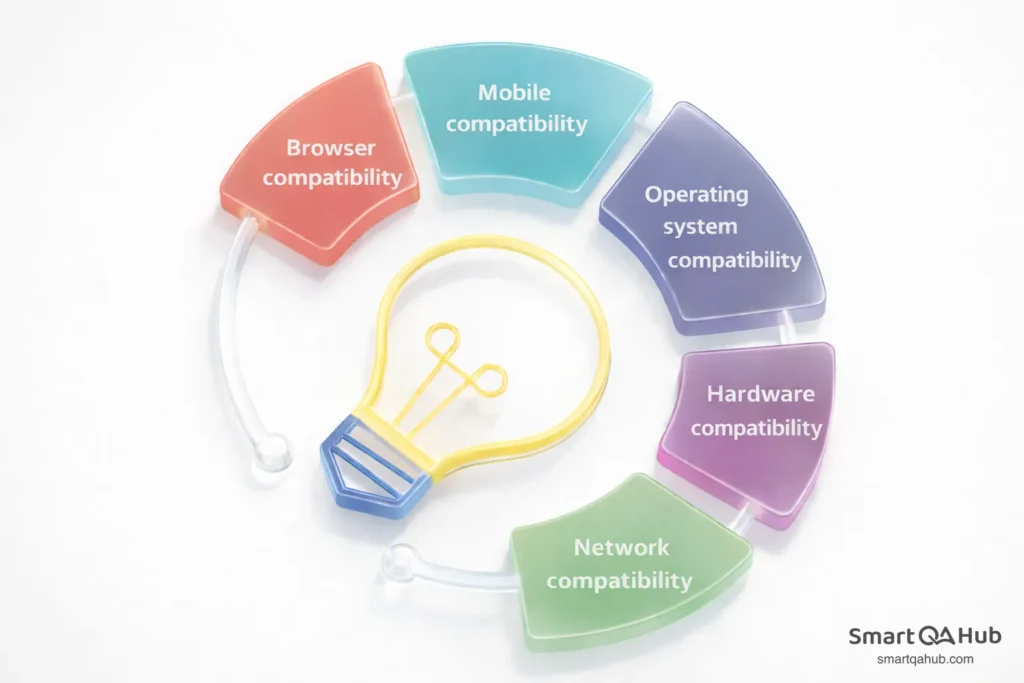
When we talk about types of compatibility testing, we’re really talking about all the different ways your software might need to adapt. Let’s break them down.
Browser compatibility
This is probably the most common type you’ll encounter. Browser compatibility testing verifies that your web application works correctly across different browsers, such as Chrome, Firefox, Safari, Edge, and yes, sometimes even Internet Explorer for enterprise clients.
Each browser interprets HTML, CSS, and JavaScript slightly differently. A layout that looks perfect in Firefox might have overlapping elements in Safari. A JavaScript function that runs smoothly in Chrome might throw errors in Edge.
The tricky part? Users often don’t update their browsers. So you’re not just testing against the latest versions, you need to consider older versions too.
Mobile compatibility
Mobile compatibility testing has become increasingly critical as more users access applications through their phones and tablets. You’re dealing with:
- Different screen sizes and resolutions
- Touch interfaces instead of mouse clicks
- Various operating system versions (iOS 15, iOS 16, Android 12, Android 13…)
- Device-specific quirks from manufacturers like Samsung, Xiaomi, or Huawei
- Different default browsers (Chrome, Samsung Internet, Safari)
What works on an iPhone 14 might not work on an iPhone SE. What looks great on a Samsung Galaxy might be completely broken on a Pixel. Mobile compatibility testing ensures your app delivers a consistent user experience regardless of the device.
Operating system compatibility
Your desktop application might need to run on Windows 10, Windows 11, macOS Sonoma, various Linux distributions, and more. Each operating system handles things like file systems, permissions, and system calls differently.
Testing compatibility across operating systems is especially important for enterprise software, where you might have users on everything from the latest Mac to a Windows workstation that hasn’t been updated in years.
Hardware compatibility
This goes beyond just device testing. Hardware compatibility testing examines how your software interacts with:
- Different processors (Intel vs. AMD vs. Apple Silicon)
- Varying amounts of RAM
- Different graphics cards
- Peripherals like printers, scanners, and external drives
- USB devices and Bluetooth connections
If your application is resource-intensive, it needs to handle machines with different specifications gracefully.
Network compatibility
Network conditions vary wildly in the real world. Network compatibility testing evaluates how your software application performs under different:
- Bandwidth conditions (broadband vs. mobile data vs. slow connections)
- Latency scenarios
- Network types (WiFi, 4G, 5G, corporate networks)
- Firewall and proxy configurations
An app that works fine on your office’s gigabit connection might be unusable for someone on a spotty cellular network.
Forward compatibility vs. backward compatibility testing: What’s the difference?
Now we’re getting into territory that confuses a lot of testers. Let’s clear it up.
Understanding backward compatibility testing
Backward compatibility testing checks whether your latest software version still works with older systems, data, and configurations. It’s about respecting the past.
For example, let’s say you’re releasing a new version of a spreadsheet application. Backward compatibility testing would verify that:
- Files created in older versions open correctly in the new version
- Users’ existing settings and customizations are preserved after the upgrade
- The interface still works with older operating systems your customers use
- Data isn’t corrupted or lost during migration
Think of it this way: when Apple releases a new iOS, they need to make sure existing apps don’t suddenly break. When Microsoft updates Office, documents created in 2015 should still open perfectly.
Backward compatibility testing is predictable because you know exactly what the older versions look like. You can create test data from previous versions and verify it works in the new system.
The tricky world of forward compatibility
Forward compatibility is trickier. It tests whether your current software can handle data and formats from future versions.
Wait, how do you test against something that doesn’t exist yet? Good question. Forward compatibility testing typically involves:
- Testing with beta versions of upcoming operating systems or browsers
- Designing your data formats to be extensible (ignoring unknown fields rather than crashing)
- Following established standards that are likely to remain stable
- Building in flexibility for future changes
For instance, iOS apps designed with forward compatibility in mind can run on iPhone models years into the future. A well-designed API can accept new fields in JSON payloads without breaking.
Forward compatibility is harder to predict because you don’t know exactly what changes are coming. But planning for it gives your software longevity and reduces urgent patch cycles when new platforms are released.
How to do browser compatibility testing
Alright, let’s get practical. Here’s a step-by-step approach to browser compatibility testing that actually works.
Step 1: Pick your battles wisely
You can’t test every browser ever made. You’d never ship anything. Instead, be strategic about which browsers to prioritize. Start with analytics. If you have an existing application, check which browsers your users actually use. If 80% of your traffic comes from Chrome, that’s your priority. If you’re building something new, look at general market share data.
A reasonable starting point might be:
- Chrome (desktop and mobile)
- Safari (desktop and iOS)
- Firefox
- Edge
- Samsung Internet (for Android users)
Consider your audience too. Building enterprise software? You might need to support older browsers that corporations are slow to update. Creating a cutting-edge web app for tech-savvy users? You can probably focus on modern browsers only.
Step 2: Set up your testing environment
You have several options here:
- Real devices and browsers: The gold standard. Install multiple browsers on your machine, and get access to real mobile devices. This gives you the most accurate results but requires significant investment.
- Virtual machines: Create VMs running different operating systems with different browser versions. More flexible than physical hardware but can be resource-intensive.
- Cloud testing platforms: Services like BrowserStack, LambdaTest, or Sauce Labs give you access to thousands of browser-device combinations through the cloud. These are particularly valuable for cross browser compatibility testing at scale.
- Browser developer tools: Most modern browsers have device emulation modes. While not perfect, they’re useful for quick checks during development.
Step 3: Create your test scenarios
Don’t just randomly click around. Create structured test scenarios that cover:
- Core user journeys (registration, login, main features)
- Form submissions and validations
- Dynamic content loading
- Responsive design at different viewport sizes
- Interactive elements (dropdowns, modals, drag-and-drop)
- File uploads and downloads
- Payment flows if applicable
Focus on areas that typically cause browser compatibility issues: CSS layouts, JavaScript functionality, and form behavior.
Step 4: Test, document, repeat
Execute your test scenarios systematically across each browser. Document everything:
- Which browser and version
- Which operating system
- What you tested
- What worked
- What didn’t work (with screenshots or recordings)
- Severity of any issues found
After developers fix the issues, retest in the affected browsers to confirm the fixes work and didn’t break anything else.
Cross browser compatibility testing tips
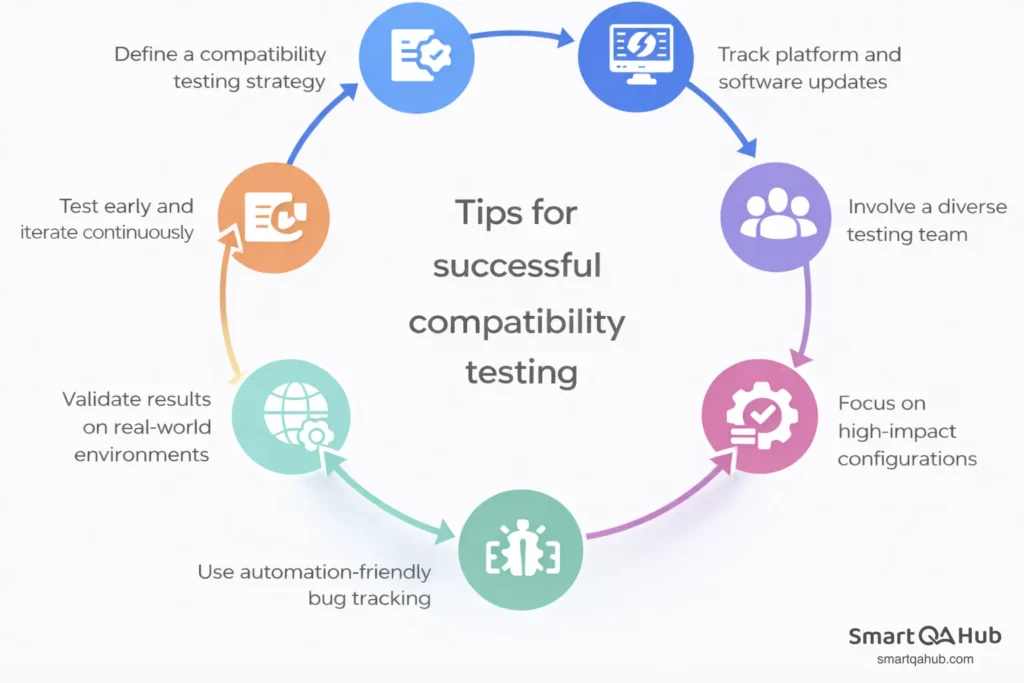
After years of doing this, here are some tips that have saved me countless hours.
- Start with the big three: Chrome, Safari, and Firefox together cover the vast majority of users. If your app works perfectly in these three, you’ve handled most of your compatibility testing workload. Test these thoroughly before moving to more niche browsers.
- Don’t forget mobile browsers: Here’s something many testers miss: mobile browsers often behave differently from their desktop counterparts. Mobile Safari has quirks that desktop Safari doesn’t. Chrome on Android handles things differently than Chrome on Windows.
- Automation is your friend: When doing mobile compatibility testing, test the actual mobile browsers, not just desktop browsers resized to mobile dimensions.
- Manual cross browser compatibility testing is tedious and error-prone. Automate where you can. Tools like Selenium, Cypress, or Playwright can run your test suites across multiple browsers automatically. Cloud testing platforms can execute these automated tests across dozens of browser combinations in parallel. That said, don’t automate everything. Visual inconsistencies often require human eyes to catch. Use automation for functional checks and supplement with manual visual verification.
- Test early, test often: Don’t wait until the end of development to start compatibility testing. The earlier you catch issues, the easier they are to fix.
- Make cross browser compatibility testing part of your continuous integration pipeline. Run automated tests against multiple browsers with every build. Address compatibility issues as they arise rather than accumulating a mountain of them for the end.
Common challenges in compatibility testing
Knowing what to look for makes compatibility testing much more efficient. Here are the issues I encounter most often:
- CSS layout breaking: Elements overlapping, incorrect spacing, content overflowing containers. This is usually caused by browser differences in interpreting CSS, especially flexbox and grid layouts.
- JavaScript errors: Functionality that works in one browser but throws errors in another. Often caused by using modern JavaScript features without proper polyfills for older browsers.
- Font rendering differences: Fonts appear differently across operating systems and browsers. Line heights, letter spacing, and even which fallback font is used can vary.
- Form behavior inconsistencies: Date pickers, dropdowns, and validation messages often behave differently across browsers. The HTML5 date input looks completely different in Chrome vs. Firefox vs. Safari.
- Touch vs. click events: Mobile browsers handle touch events differently than desktop browsers handle clicks. Hover states don’t exist on mobile in the same way.
- Performance variations: An animation that runs smoothly in Chrome might be choppy in Safari. A page that loads quickly in Firefox might timeout in Edge.
- Missing features: Older browsers don’t support newer web APIs. Your code might rely on features that simply don’t exist in certain browsers.
Tools for compatibility testing
You don’t have to do everything manually. Here are some tools that can help:
BrowserStack: Cloud-based platform providing access to real browsers and devices. Great for both manual and automated testing across thousands of combinations.
LambdaTest: Similar to BrowserStack, offering live testing, screenshot testing, and integration with automated testing frameworks.
Sauce Labs: Popular in enterprise environments, offering comprehensive cross browser compatibility testing with strong CI/CD integration.
Can I Use (caniuse.com): Essential reference for checking which browsers support specific web features. Before using a new CSS property or JavaScript API, check here first.
Responsinator: Quick way to see how your site looks on popular devices without setting up a full testing environment.
Browser developer tools: Built-in device emulation in Chrome, Firefox, and Safari dev tools. Useful for quick responsive checks during development.
FAQ: Frequently asked questions about compatibility testing
How long does compatibility testing usually take?
It depends on your scope, but typically 2-5 days for thorough browser and mobile testing across priority platforms. If you’re testing 5 browsers with 3-4 key user flows, expect 1-2 days for manual testing. Add automation setup, and initial investment is 3-5 days, but subsequent test cycles drop to hours. Enterprise applications with legacy system support can take 1-2 weeks.
Can compatibility testing be done by developers, or do you need dedicated QA testers?
Developers can handle basic compatibility checks during development, especially with automated tools and browser dev tools. However, dedicated testers bring a different perspective: they test like real users, catch visual inconsistencies developers might miss, and think about edge cases. The ideal approach? Developers do compatibility checks during coding, QA does comprehensive testing before release.
What’s the difference between compatibility testing and responsive design testing?
Responsive design testing checks if your layout adapts to different screen sizes – it’s about design flexibility. Compatibility testing goes deeper: it verifies your app actually functions correctly across different browsers, operating systems, and devices. Your site might be perfectly responsive but still break in Safari due to JavaScript issues. You need both.
How do you prioritize compatibility testing when you have limited time and budget?
Start with data. Check your analytics to see which browsers, devices, and OS versions your users actually use. Test the top 3-4 combinations that cover 80% of your traffic first. Then use the 80/20 rule: focus on critical user paths (login, checkout, core features) rather than testing every page. Automate repetitive checks and use cloud testing platforms to test multiple environments in parallel without buying devices.
Final thoughts: Making compatibility testing work for you
Compatibility testing might seem overwhelming when you consider all the possible combinations of devices, browsers, and operating systems. But here’s the secret: you don’t need to test everything. Focus on what matters for your users. Check your analytics, understand your audience, and prioritize the platforms that represent the majority of your user base. Test those thoroughly, automate what you can, and make compatibility testing a habit from the start, not an afterthought.
The best testers don’t see compatibility testing as a burden. They see it as an opportunity to make software better for real people with real devices. When your app works seamlessly whether someone’s on a brand new MacBook or a five-year-old Android phone, that’s craftsmanship. Every user you don’t accidentally exclude is a user who gets to benefit from the software you’ve built. That’s worth the extra effort.
Sources:
- https://www.qamadness.com/the-essentials-of-browser-compatibility-testing/
- https://pamsalon.medium.com/cross-browser-compatibility-site-testing-tips-56b190d12540
- https://www.testmu.ai/blog/basics-of-compatibility-testing
- https://www.testdevlab.com/blog/what-is-compatibility-testing-and-why-does-it-matter


